First-Time Setup
After deploying Crude Functions for the first time, you’ll need to create an admin user and configure initial settings. This guide walks through the essential first-time setup steps.
What Happens on First Run
Section titled “What Happens on First Run”On first startup, Crude Functions automatically:
- Creates SurrealDB database at
./data/surreal/ - Generates encryption keys at
./data/encryption-keys.json - Runs database migrations
- Enables the sign-up page for admin user creation
The server is now ready for you to create your admin account.
Creating Your Admin User
Section titled “Creating Your Admin User”Access the Web UI
Section titled “Access the Web UI”Navigate to the web interface:
http://localhost:9000/webIf deploying remotely, replace localhost:9000 with your server’s address.
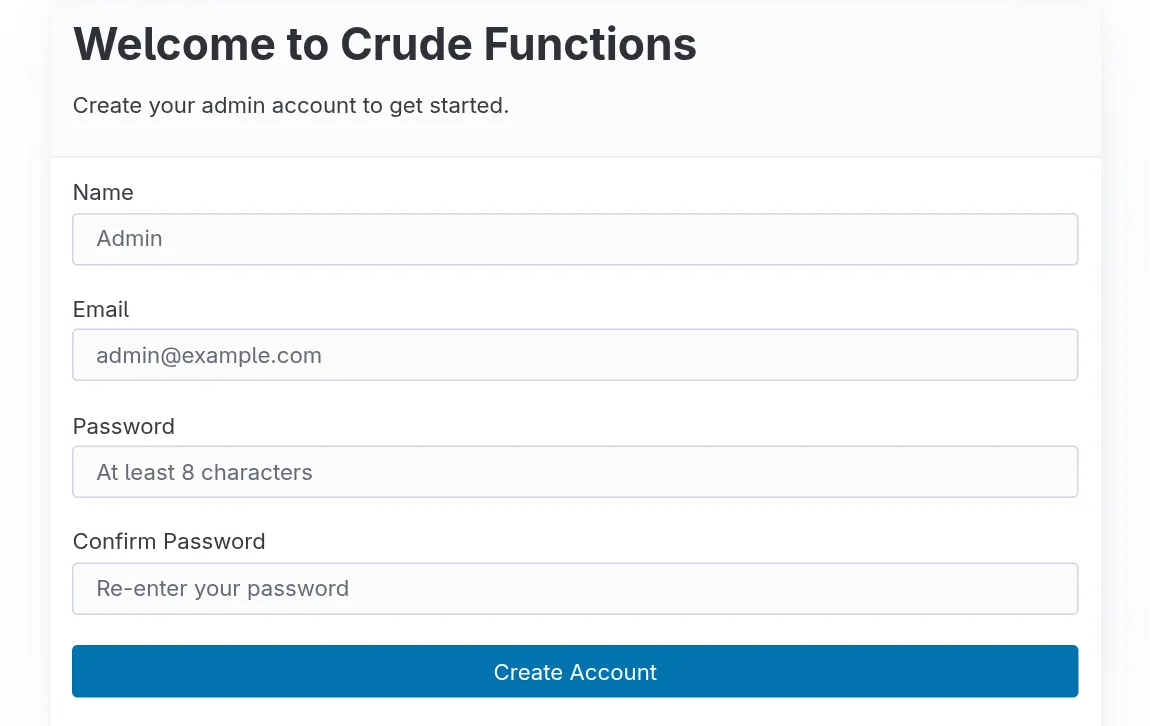
Complete the Sign-Up Form
Section titled “Complete the Sign-Up Form”- Enter your email address
- Create a strong password (minimum 8 characters)
- Click “Create Account”
Important: After this first user is created, you cannot use the sign-up page again. Additional users must be added through the Users page in the web UI.
Management API keys
Section titled “Management API keys”Initially, access to API endpoints for managing the Crude Functions server is restricted to the logged in users. To allow programmatic access you need to create an API key within the defined API Access Group. By default Crude Functions comes with a management API key group which is already set in the settings to allow access to the management API. All you need to do is create the actual API key within that group.
Creating new management key
Section titled “Creating new management key”Click the 🔑 icon in the navigation bar or go to http://localhost:9000/web/keys.
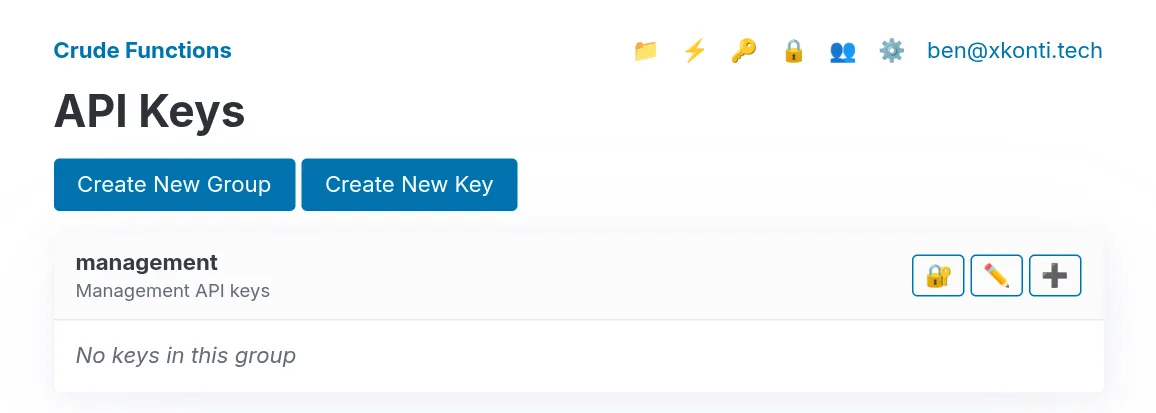
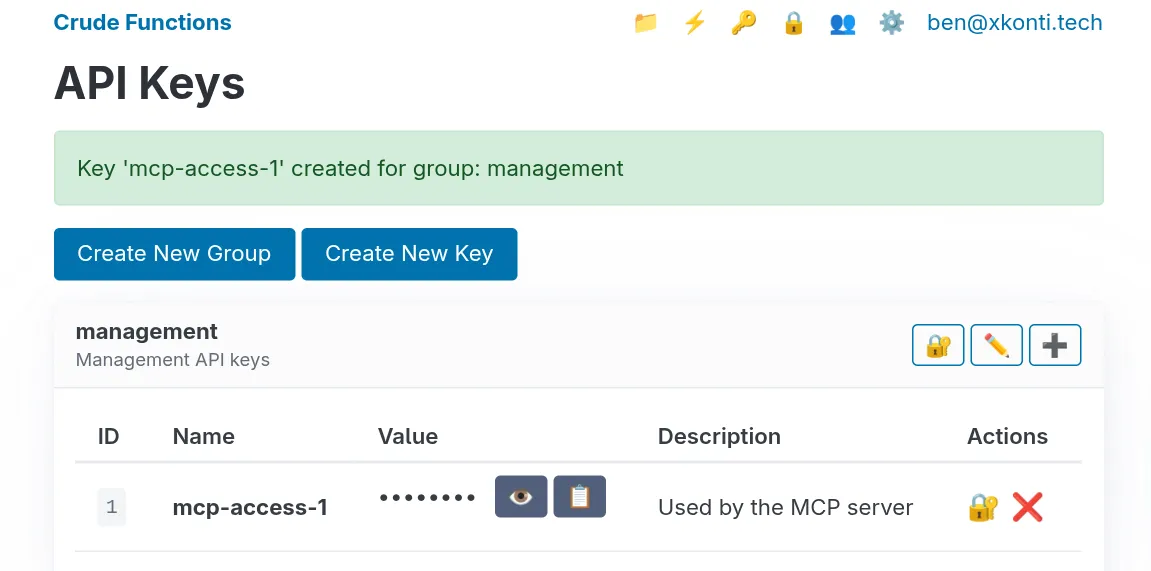
Then using the ➕ button you can create a new key within the management group.
The web UI will show partial keys (last 6 characters) after creation for security.
Test Your API Key
Section titled “Test Your API Key”Verify the key works:
curl -H "X-API-Key: your-key-value-here" \ http://localhost:9000/api/key-groupsYou should receive a JSON response listing API key groups (at minimum the management group you just created a key for):
{ "groups": [ { "id": 1, "name": "management", "description": "Management API keys" } ]}Understanding the Data Directory
Section titled “Understanding the Data Directory”Everything persistent lives in ./data/:
data/├── surreal/ # Routes, functions, API keys, users, secrets, logs, metrics└── encryption-keys.json # AES-256-GCM keys for encrypting API keys and secretsCritical: Back Up Your Encryption Keys
Section titled “Critical: Back Up Your Encryption Keys”If you lose encryption-keys.json, you lose access to all encrypted data permanently. Store the backup in a secure location separate from your server.